

Oracle SQL Developer is a popular Oracle tool for accessing Oracle databases and obtaining SQL queries. It comes with the Oracle 11g client or can be downloaded without the Java package. When SQL Developer is launched for the first time, it asks you where the Java SDK home directory is located.
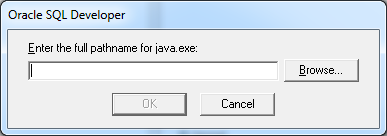
With this screen you will specify the JDK path and Oracle SQL Developer will use the Java JVM you provided.
Now, how do I change the JDK path?
It’s very simple.
Open
[sqldeveloper_installation]\sqldeveloper\bin\sqldeveloper.conf (in my case, sqldeveloper_installation is the Oracle client path C:\oracle\product\11.2.0\client_1\sqldeveloper) and modify the following line:

Of

SetJavaHome C:\Program Files\Java\jdk1.7.0_13
To:
#SetJavaHome C:\Program Files\Java\jdk1.7.0_13
SetJavaHome C:\Program Files (x86)\Java\jdk1.7.0_13
In my case, I changed the location because I had installed same with 813bet the 64-bit JDK and wanted to use the 32-bit version.
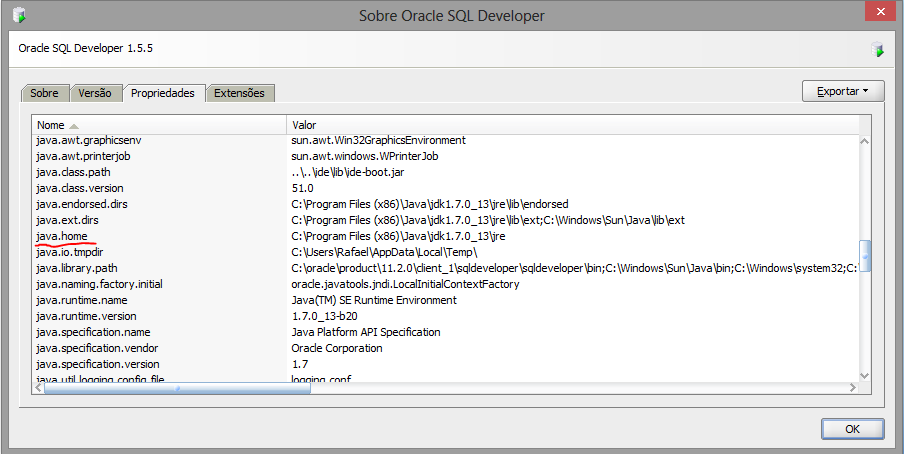
That is, you can comment out or remove the old path to the Java SDK and replace it with the new path. Now restart Oracle SQL Developer and verify that it uses the new path by going to “Help->About” and selecting “Properties”:

Autor: Rafael Stoever
Bacharel em Sistema de Informação pela Uniasselvi, atualmente cursando Gerenciamento de Projetos em TI pela Pós Graduação Uniasselvi. Atuo como Analista de suporte a banco de dados – DBA pela Lumina Serviços em TI residente de Blumenau/ SC, OPN Certified Specialist, Certificado OCP 10g/11g/12c, OCE RAC10g e Linux 10g. Conhecimentos em Microsoft SqlSever, Mysql e programação web (php,asp).






No meu caso estava no arquivo “product.conf”. Pela data do post deve ser uma versão mais antiga, espero ajudar alguém.
Caminho: C:\Users\\AppData\Roaming\sqldeveloper\1.0.0.0.0\